AKADAA, STEP BY STEP
Look Up a Student Result Sheet and Verify It by QR Code (Akadaa)
Find any student's result sheet, read every course, GPA and CGPA, and see how anyone can scan its QR code to check it matches what the college published.
Jump to a step
Captions and full-screen viewing are available in the player. Watch on YouTube
KEEP THIS BESIDE YOU
The steps, in writing.
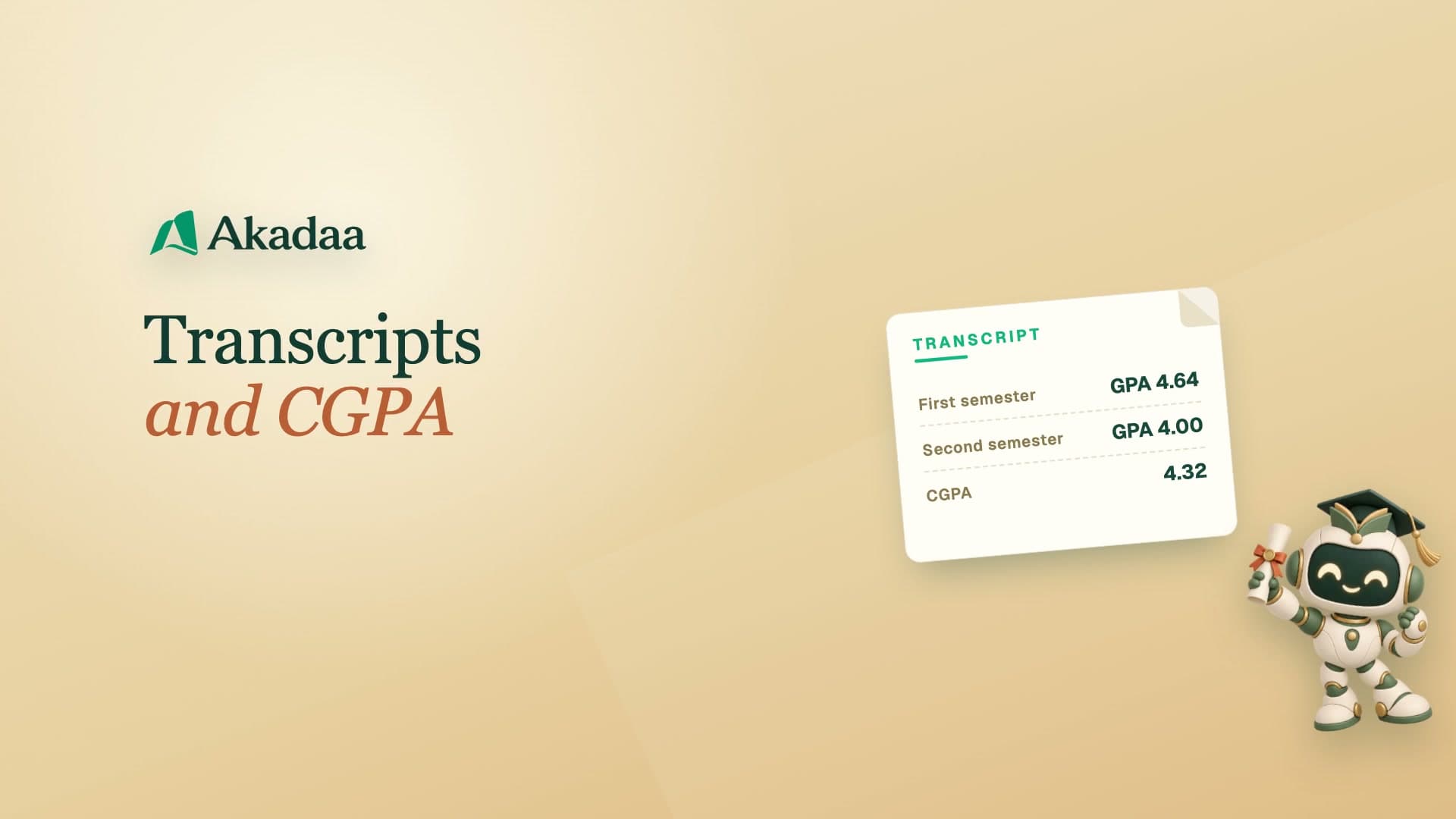
For colleges. The exams officer looks up any student's result sheet under Exams, Student Results (search a name or the admission number): every course with its marks and grade, GPA and CGPA. A completed session carries a code: anyone can scan the QR or tap the link to check it matches the results the college published, with no account. If a mark changes later, the old code stops matching.
Find the student
Open Student Results and search by name or admission number.
Review the result sheet
Select the session and check course marks, grades, semester GPA and CGPA.
Verify a completed session
Use the sheet’s QR code to open its public verification page. The code confirms the published record; a later change to the marks invalidates the earlier code.